Forms on your website
Use our ready-made form, match your own design, or send from your server. Each form has its own private inbox, whether inquiries come from a form link or your website.
On this page
All guides
Choose your method
| Method | How it works | You need |
|---|---|---|
| Add our ready-made form | Paste it into your website. | Your website’s editor, with an HTML or Embed block |
| Keep your own form design | Your design. No page reload. | Development work on your website |
| Connect your server | Send from your own backend. | Development work on your server |
Open the form’s Share tab. Under Change how you share, choose Add a form to my website for an embed, or Connect my own form for browser and server code. The Share tab then shows those instructions. Existing links and connections keep working.
Add our ready-made form (embed)
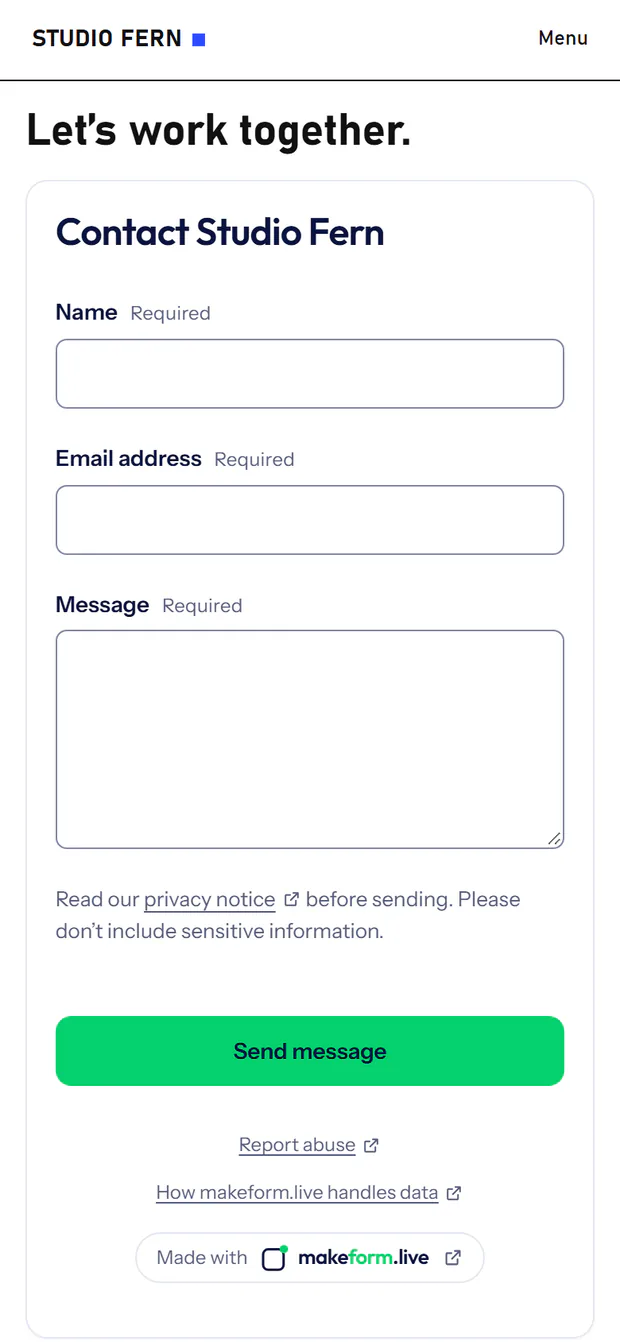
- Publish your form, then open its Share tab.
- Under Add a ready-made form to your website, paste the page link where it will appear and select Save website.
- Copy the embed code into your website’s HTML or Embed block and publish the page.
- Send a test message. Check the form’s Inquiries and, if the form sends any, your notifications.

HTTPS is required; localhost works for development. We save the website address from your page link. Add both www and non-www addresses if you use both. Removing one blocks future page loads and new inquiries from that address.
Keep your own form design (HTML + AJAX)
AJAX means the message is sent in the background. Your visitor stays on the same page and sees a confirmation.
What the connection setup asks
Start with Connect my own form. Follow Match fields → Privacy → Notifications → Review and enable. Match each field name to your website’s input name or JSON key, then choose the inbox label, data type and whether it is required. The example shows incoming data, not your website’s appearance. Supplied optional values must also validate; unmapped fields are rejected.
Choose how long makeform.live keeps inquiries and link the privacy notice displayed on your website. Your website controls its wording and design. Choose who hears about new inquiries and verify any notification email, then select Enable connection to get your code.
- Enable the connection and save your website address. Existing published forms can open their Share tab directly.
- Under Use your own form, choose HTML, JavaScript, TypeScript or React, and copy your example.
- Paste it into your page and style the fields. Keep their names, the data attributes, verification container, status message and script.
- Test sending a message from your published website. Success appears only after makeform.live confirms it is saved.
The included script handles spam verification, JSON submission and retries without a secret key or a makeform.live login for your visitors.
These examples use a sample contact form. Replace YOUR_FORM_ID and the privacy link. Your form’s Share tab fills in its real endpoint, fields and notice for you.
HTML
Paste into your page and style the fields. Includes spam protection and submission without a page reload.
<!-- Style these fields to match your website. Keep their name attributes. -->
<form id="contact-form" data-makeform="https://makeform.live/v1/forms/YOUR_FORM_ID/submissions">
  <label>Name<input type="text" name="name" maxlength="200" required></label>
  <label>Email address<input type="email" name="email" maxlength="254" required></label>
  <label>Message<textarea name="message" rows="5" maxlength="2000" required></textarea></label>
  <div hidden><label>Leave this empty<input name="__makeform_website" data-makeform-honeypot tabindex="-1" autocomplete="off"></label></div>
  <p>Read our <a href="https://yourbusiness.com/privacy" target="_blank" rel="noreferrer">privacy notice (opens in a new tab)</a> before sending. Please don't include sensitive information.</p>
  <div data-makeform-verification></div>
  <button type="submit" disabled>Send message</button>
  <p data-makeform-status role="status" aria-live="polite"></p>
  <noscript>Please enable JavaScript to send this form.</noscript>
</form>
<script src="https://makeform.live/makeform.js" defer></script>
JavaScript
Use the fields from the HTML tab, including id="contact-form", but remove its final script tag. Run this JavaScript after rendering the form.
const client = window;
const script = document.createElement("script");
script.src = "https://makeform.live/makeform.js";
script.async = true;
// Connect after your form has been rendered. No API key is used in the browser.
const form = document.querySelector("#contact-form");
if (!form) throw new Error("Render the contact-form element first.");
let disconnect;
function connect() {
  disconnect = client.MakeForm.connect(form);
}
script.onload = connect;
script.onerror = () => {
  const status = form.querySelector("[data-makeform-status]");
  if (status) status.textContent = "The form could not load. Please refresh and try again.";
};
if (client.MakeForm) connect();
else document.head.append(script);
// Before removing this form in a single-page app, call disconnect?.().
// The helper handles fetch, spam verification, typed fields and safe retries.
TypeScript
Use the fields from the HTML tab, including id="contact-form", but remove its final script tag. Add this to your browser TypeScript code after rendering the form.
type MakeFormClient = { connect(form: HTMLFormElement): () => void };
const client = window as Window & { MakeForm?: MakeFormClient };
const script = document.createElement("script");
script.src = "https://makeform.live/makeform.js";
script.async = true;
// Connect after your form has been rendered. No API key is used in the browser.
const form = document.querySelector<HTMLFormElement>("#contact-form");
if (!form) throw new Error("Render the contact-form element first.");
let disconnect: (() => void) | undefined;
function connect() {
  disconnect = client.MakeForm!.connect(form!);
}
script.onload = connect;
script.onerror = () => {
  const status = form!.querySelector("[data-makeform-status]");
  if (status) status.textContent = "The form could not load. Please refresh and try again.";
};
if (client.MakeForm) connect();
else document.head.append(script);
// Before removing this form in a single-page app, call disconnect?.().
// The helper handles fetch, spam verification, typed fields and safe retries.
React
Copy into ContactForm.tsx and render <ContactForm />. Replace or style the fields as needed, keeping their names and the verification/status elements.
"use client";
// Save as ContactForm.tsx. Style these native fields with your own CSS.
import { useEffect, useRef } from "react";
type MakeFormClient = { connect(form: HTMLFormElement): () => void };

export default function ContactForm() {
  const ref = useRef<HTMLFormElement>(null);
  useEffect(() => {
    const form = ref.current;
    if (!form) return;
    const client = window as Window & { MakeForm?: MakeFormClient };
    let active = true;
    let disconnect: (() => void) | undefined;
    const connect = () => { if (active) disconnect = client.MakeForm!.connect(form); };
    const script = document.createElement("script");
    script.src = "https://makeform.live/makeform.js";
    script.async = true;
    script.onload = connect;
    script.onerror = () => {
      const status = form.querySelector("[data-makeform-status]");
      if (active && status) status.textContent = "The form could not load. Please refresh and try again.";
    };
    if (client.MakeForm) connect();
    else document.head.append(script);
    return () => { active = false; disconnect?.(); script.remove(); };
  }, []);
  return (
    <form ref={ref} data-makeform={"https://makeform.live/v1/forms/YOUR_FORM_ID/submissions"}>
      <label>{"Name"}<input type="text" name={"name"} required /></label>
      <label>{"Email address"}<input type="email" name={"email"} required /></label>
      <label>{"Message"}<textarea name={"message"} rows={5} maxLength={2000} required /></label>
      <div hidden><label>Leave this empty<input name="website" tabIndex={-1} autoComplete="off" /></label></div>
      <p>Read our <a href={"https://yourbusiness.com/privacy"} target="_blank" rel="noreferrer">privacy notice (opens in a new tab)</a> before sending. Please don't include sensitive information.</p>
      <div data-makeform-verification />
      <button type="submit" disabled>Send message</button>
      <p data-makeform-status role="status" aria-live="polite" />
    </form>
  );
}
// The helper manages these uncontrolled fields and status. Do not add a second onSubmit.
// It releases listeners and the verification iframe on unmount (including Strict Mode).Writing your own fetch call?
This is the request step, not a complete form. Replace YOUR_FORM_ID with the public ID from your form’s submission endpoint. Your form’s Share tab also provides this function with your endpoint already filled in.
// Browser request step. The HTML + AJAX snippet includes the full flow.
// Get verificationToken from the makeform.live verification iframe first.
// Keep submissionKey (crypto.randomUUID()) when retrying unchanged data.
export async function sendInquiry({ data, submissionKey, verificationToken, website = "" }) {
  const response = await fetch("https://makeform.live/v1/forms/YOUR_FORM_ID/submissions", {
    method: "POST",
    credentials: "omit",
    headers: { "Content-Type": "application/json" },
    body: JSON.stringify({ data, submissionKey, verificationToken, website }),
    signal: AbortSignal.timeout(15000),
  });
  const result = await response.json();
  if (!response.ok || result.status !== "accepted") {
    throw new Error(result.message || "Message not confirmed. Please try again.");
  }
  return result; // Saved; email delivery is tracked separately.
}
Before calling it, create a verification iframe at /verify/YOUR_FORM_ID?origin=YOUR_ENCODED_WEBSITE_ORIGIN on the makeform.live host. Encode your website’s location.origin with encodeURIComponent.
Listen for its makeform:verification message. Accept the token only when the event origin is exactly the makeform.live origin, the source is that iframe’s contentWindow, formId matches your public form ID and token is a string. Disable sending until a token is available.
Use your published field IDs as data keys. Generate a submissionKey once with crypto.randomUUID() and retain it for retries of unchanged data. Pass the verification token and an empty website honeypot value.
After failure, clear the old token and send { type: "makeform:reset", formId: "YOUR_FORM_ID" } to the iframe’s contentWindow, using the exact makeform.live origin as targetOrigin. Wait for a fresh token before retrying. Show errors without clearing the visitor’s fields.
Read the complete working browser helper, including these checks, field types and retry handling. The generated HTML uses it directly.
Connect your server (API)
Use this when you already have a backend that receives and validates your visitor’s message. Your backend sends JSON to makeform.live.
- Open your form’s Share tab, expand Send from your server and choose Enable API access.
- This creates Key 1 and Key 2 together. Copy both now; their values are shown only once.
- Save the key as
MAKEFORM_API_KEYin your server’s environment or secret store. - Choose Node.js, Python, C# or Java in the Share tab. Each example includes your endpoint and sample fields. Keep the key on your server and add spam/rate protection to your own public endpoint.
- Keep one submission key with each inquiry before sending. Reuse it for retries; use a new key for changed data.
Send from your server appears when the form is set to Connect my own form under Change how you share. Publish the form before sending inquiries.

Replace YOUR_FORM_ID and match data to your published field names. Example calls are commented out; importing a client does not send an inquiry.
Node.js
Node.js 24+. Save as makeform.mjs. The commented example shows this form’s published fields.
// Node.js 24+. Save as makeform.mjs. Run only on your server.
// Create Key 1 and Key 2 on this form's Share tab → Send from your server · API.
// Set MAKEFORM_API_KEY on your server.
export async function sendInquiry(data, submissionKey) {
  const apiKey = process.env.MAKEFORM_API_KEY;
  if (!apiKey) throw new Error("Set MAKEFORM_API_KEY on your server.");
  if (!submissionKey) throw new Error("Provide one submission key per inquiry.");
  const response = await fetch("https://makeform.live/v1/forms/YOUR_FORM_ID/submissions", {
    method: "POST",
    headers: {
      "Content-Type": "application/json",
      "Authorization": "Bearer " + apiKey,
    },
    body: JSON.stringify({ submissionKey, data }),
    signal: AbortSignal.timeout(15000),
  });
  const result = await response.json();
  if (!response.ok || result.status !== "accepted") {
    throw new Error(result.message || "Inquiry not confirmed.");
  }
  return result;
}

// Example usage in your server handler:
// import { randomUUID } from "node:crypto";
// import { sendInquiry } from "./makeform.mjs";
// const submissionKey = randomUUID(); // Persist with the inquiry before sending.
// const data = {"name":"Alex","email":"alex@example.test","message":"A fictional test inquiry."};
// await sendInquiry(data, submissionKey);
// Retry using the SAME data and key; generate a new key for a different inquiry.
Python
Python 3. Uses the standard library; no package installation needed. Save as makeform.py.
import json
import os
import urllib.request
import urllib.error

def send_inquiry(data, submission_key):
    api_key = os.environ.get("MAKEFORM_API_KEY")
    if not api_key or not submission_key:
        raise ValueError("Set MAKEFORM_API_KEY and provide a submission key.")
    body = json.dumps({"submissionKey": submission_key, "data": data}).encode("utf-8")
    request = urllib.request.Request(
        "https://makeform.live/v1/forms/YOUR_FORM_ID/submissions", data=body, method="POST",
        headers={"Content-Type": "application/json", "Authorization": "Bearer " + api_key})
    try:
        with urllib.request.urlopen(request, timeout=15) as response:
            result = json.load(response)
    except urllib.error.HTTPError as error:
        # Honor error.headers.get("Retry-After") for 429/503. Do not retry immediately.
        raise RuntimeError(f"Inquiry not confirmed (HTTP {error.code}).") from error
    if result.get("status") != "accepted":
        raise RuntimeError("Inquiry not confirmed.")
    return result

# Example in your server handler (not run on import):
# import uuid
# data = json.loads("{\"name\":\"Alex\",\"email\":\"alex@example.test\",\"message\":\"A fictional test inquiry.\"}")
# submission_key = str(uuid.uuid4())  # Persist BEFORE sending; reuse for retries.
# send_inquiry(data, submission_key)
# Network errors mean acceptance is uncertain. Retry the SAME key and data later.
C#
.NET 8+. Save as MakeFormClient.cs in your server project. Uses built-in HTTP and JSON libraries.
using System;
using System.Net.Http;
using System.Net.Http.Headers;
using System.Net.Http.Json;
using System.Text.Json;
using System.Threading.Tasks;

public static class MakeFormClient
{
    private static readonly HttpClient Client = new() { Timeout = TimeSpan.FromSeconds(15) };
    public static async Task<JsonElement> SendInquiryAsync(object data, string submissionKey)
    {
        var apiKey = Environment.GetEnvironmentVariable("MAKEFORM_API_KEY");
        if (string.IsNullOrWhiteSpace(apiKey) || string.IsNullOrWhiteSpace(submissionKey))
            throw new InvalidOperationException("Set MAKEFORM_API_KEY and provide a submission key.");
        using var request = new HttpRequestMessage(HttpMethod.Post, "https://makeform.live/v1/forms/YOUR_FORM_ID/submissions");
        request.Headers.Authorization = new AuthenticationHeaderValue("Bearer", apiKey);
        request.Content = JsonContent.Create(new { submissionKey, data });
        using var response = await Client.SendAsync(request);
        // For 429/503, honor response.Headers.RetryAfter before retrying.
        response.EnsureSuccessStatusCode();
        var result = await response.Content.ReadFromJsonAsync<JsonElement>();
        if (!result.TryGetProperty("status", out var status) || status.GetString() != "accepted")
            throw new InvalidOperationException("Inquiry not confirmed.");
        return result;
    }
}

// In your server handler:
// var data = JsonSerializer.Deserialize<JsonElement>("{\"name\":\"Alex\",\"email\":\"alex@example.test\",\"message\":\"A fictional test inquiry.\"}");
// var key = Guid.NewGuid().ToString(); // Persist BEFORE sending; reuse for retries.
// await MakeFormClient.SendInquiryAsync(data, key);
// A timeout does not prove failure. Retry the SAME key and data later.
Java
Java 17+. Save as MakeFormClient.java. Add com.fasterxml.jackson.core:jackson-databind (Jackson 2.21.6, or your framework’s maintained Jackson 2 version) to your server project.
import java.io.IOException;
import java.net.URI;
import java.net.http.HttpClient;
import java.net.http.HttpRequest;
import java.net.http.HttpResponse;
import java.time.Duration;
import java.util.Map;
import com.fasterxml.jackson.databind.JsonNode;
import com.fasterxml.jackson.databind.ObjectMapper;

public final class MakeFormClient {
    private static final HttpClient CLIENT = HttpClient.newBuilder()
        .connectTimeout(Duration.ofSeconds(15)).build();
    private static final ObjectMapper JSON = new ObjectMapper();
    public static JsonNode sendInquiry(Map<String, Object> data, String submissionKey)
            throws IOException, InterruptedException {
        String apiKey = System.getenv("MAKEFORM_API_KEY");
        if (apiKey == null || apiKey.isBlank() || submissionKey == null || submissionKey.isBlank())
            throw new IllegalArgumentException("Set MAKEFORM_API_KEY and provide a submission key.");
        String body = JSON.writeValueAsString(Map.of("submissionKey", submissionKey, "data", data));
        HttpRequest request = HttpRequest.newBuilder(URI.create("https://makeform.live/v1/forms/YOUR_FORM_ID/submissions"))
            .timeout(Duration.ofSeconds(15))
            .header("Content-Type", "application/json")
            .header("Authorization", "Bearer " + apiKey)
            .POST(HttpRequest.BodyPublishers.ofString(body)).build();
        HttpResponse<String> response = CLIENT.send(request, HttpResponse.BodyHandlers.ofString());
        // For 429/503, honor response.headers().firstValue("Retry-After") before retrying.
        if (response.statusCode() < 200 || response.statusCode() >= 300)
            throw new IOException("Inquiry not confirmed (HTTP " + response.statusCode() + ").");
        JsonNode result = JSON.readTree(response.body());
        if (!"accepted".equals(result.path("status").asText()))
            throw new IOException("Inquiry not confirmed.");
        return result;
    }
}

// In your server handler, using an ObjectMapper named mapper:
// Map<String, Object> data = mapper.readValue("{\"name\":\"Alex\",\"email\":\"alex@example.test\",\"message\":\"A fictional test inquiry.\"}",
//     new com.fasterxml.jackson.core.type.TypeReference<Map<String, Object>>() {});
// String key = java.util.UUID.randomUUID().toString(); // Persist BEFORE sending.
// MakeFormClient.sendInquiry(data, key);
// A timeout does not prove failure. Retry the SAME key and data later.
Rotate, disable or replace a key
Keys can only submit to their own form. They expire after 90 days. To rotate one, switch your server to the other active key, then choose Regenerate for the old key. Its previous value stops working immediately. Disable stops a key without replacing it; accepted inquiries stay in the inbox. If you lose a key, regenerate it to get a new value.
Verification and limits for server requests
An authorised direct server request does not need a browser verification token or saved website address. It still follows the form’s published fields, usage allowance and request limits. Do not forward browser cookies or an Origin header to this server request.
Receive files with Pro
Turn on Allow file uploads in your form’s Settings → Questions. The shareable form and embed then let visitors choose up to three files: 5 MiB each and 10 MiB total. They can be PNG, JPEG or WebP photos, or PDFs (iPhone HEIC photos aren’t accepted); photos are saved as WebP without location details. Your account includes 1 GiB of private file storage.
Files from your own form or server
For your own JavaScript, React or server form, send the same JSON request to /v1/forms/YOUR_FORM_ID/submissions-with-files and add files: [{ name: "brief.pdf", content: "BASE64_FILE_BYTES" }]. Encode each file as base64 without a data-URL prefix. Keep the same submission key and unchanged file content when retrying. Browser requests still need verification; server requests still need their scoped key.
Download files privately from the inquiry page. They are not attached to notification emails or included in CSV/JSON exports. Deleting the inquiry also deletes its files. If storage is full, visitors can remove files and send their message.
Know which link brought an inquiry
With Pro, open the Share tab, expand Label your sharing links, and create a label such as Instagram bio. Copy that link to the relevant place. Inquiries show the label in your inbox. The count covers inquiries still in your inbox, not clicks or all-time visits.
Labels with your own form or server
The ready-made website script doesn’t send a label. For your own form, send source from your own fetch call or your server: take the source token from your labelled link and include it as the optional source value in the submission JSON. The token is scoped to that form and is not a secret. A shared or forwarded link keeps its label; it does not prove the visitor’s origin.
Know when it worked
HTTP 201 with status: accepted means the inquiry is saved and any notifications are queued. HTTP 200 acknowledges a previously accepted request with the same key. Neither confirms that an email reached the inbox; check delivery status in makeform.live.
Response codes, retries and limits
| Response | What it means and what to do |
|---|---|
| 401 / 403 | Check the server key, saved website or spam verification. uploads_unavailable means the form isn’t accepting files; send the message without them. |
| 404 | Check the endpoint and that the form is published and not paused. |
| 409 | The form schema changed, or the key was reused with different data. Refresh the form or use a new key for the changed inquiry. upload_expired means send the files again; file_storage_full means send the message without files. |
| 413 | The request is too large. Check the limits below and the file limits. |
| 422 | Correct the submitted fields. |
| 429 | Wait before retrying; check the account allowance. Honour Retry-After when present. |
| 503 | temporarily_unavailable is usually temporary: retry later with the same key and unchanged data. If its message is “This form is not ready to receive inquiries.”, retrying won’t help: check that the form’s notification email is verified in Settings → Notifications. files_unavailable means file uploads are temporarily unavailable; send without files or retry later. |
| Network failure / other 5xx | Acceptance is uncertain. Retry later with the same key and unchanged data; browser clients need fresh verification. |
Accepted submission keys are remembered for 24 hours. Keep retries within that window. If a result is still uncertain afterwards, check Inquiries before sending again to avoid a duplicate.
Text-only requests are limited to 4 MiB; the file endpoint allows a 18 MiB encoded request. Optional schemaVersion pins a published version; omitting it uses the current published form. The OpenAPI contract contains request and response definitions.