Add a form to your Instagram bio
Give Instagram visitors one link where they can contact you. No website needed.
On this page
All guides
Before you start
- Publish your form and check that it is accepting inquiries.
- In Share, choose Copy link. Your public link contains /f/.

Add the link in the Instagram app
- In the Instagram app, open your profile and choose Edit profile.
- Open Links, choose Add external link, and paste your form link. Give it a title such as Contact us.
- Save, return to your profile and tap the link to check it.
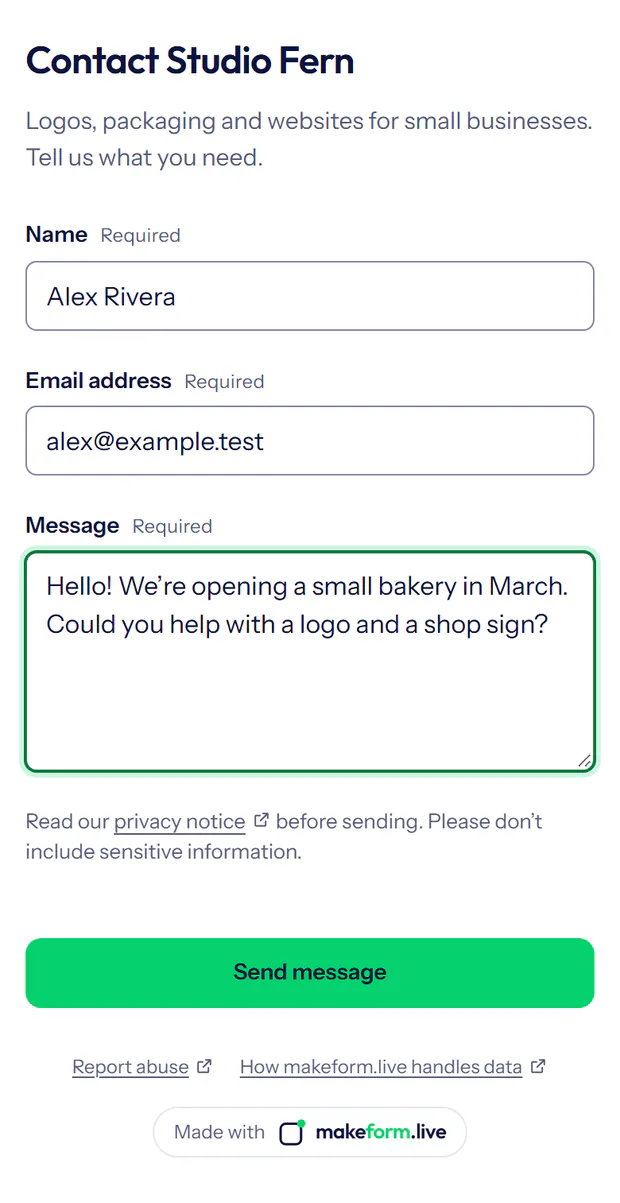
Use the profile’s Links field so visitors can tap it. Menu names can vary by app version.
You need access to edit the Instagram profile. The link title is what people tap; “Ask about personal training” or “Send an inquiry” is clearer than a bare address. You can add a short sentence to your bio explaining what the link is for.
If your profile looks different
I cannot find Links
Try the current Instagram mobile app, make sure you are editing the correct profile, and look for the external-link option. Labels differ between app versions and accounts. See the Instagram Help Center for your version.
The address is visible but cannot be tapped
Add it to the profile’s link field. Do not rely on a URL pasted into a caption or ordinary bio text becoming a clickable link.
I already have a link in my bio
Keep an existing link that customers need. If your profile offers another external link, add your form there and give it a clear title. If you use a separate page listing your links, add a contact button to that page instead.
Check the result
- Open the link where you placed it, preferably on a phone or in a private browser window. Check the public title and questions.
- Send a short test inquiry with an email address you control. A confirmation should appear after it is saved.
- Return to your form’s Inquiries page and choose the refresh button. Your test should appear there.
The link asks customers to sign in
You may have copied the dashboard address. Replace it with the public form link from Share.
The form is unavailable or cannot accept a message
Check that the form is published and not paused. Look for a usage-limit or setup warning in your dashboard. Copy the link again if you created a replacement form; deleting a form does not redirect its old links.
The link opens the wrong form or shows an old preview
Compare the saved destination with Copy link in your dashboard. Social apps can keep an older link preview; open the link itself to check the current page. An internal name such as “Instagram” is only for you; visitors see your public title.
The inquiry arrived but the email did not
The saved inquiry is still in your inbox. Follow the notification email checks.
What to send support
If you are still stuck, contact support with the app or website builder you are using, the step that failed and the error shown. Do not include passwords, verification codes or customer messages.