Notification emails
Your private inbox is the place to check first. Email notifications help you know when to look.
On this page
All guides
Start with your inquiry
Open your form’s Inquiries page. If the message is there, it has been saved. You can use Reply by email and mark it as handled without waiting for a notification.

In the inquiry list, a row says Email failed, Some emails failed or Email delayed only when something needs your attention.
What the notification status means
Open the inquiry: Your notification shows one of these.

| Status | What it means | What to do |
|---|---|---|
| Queued or Sending | We are preparing the notification or retrying a temporary problem. After 15 minutes the inquiry shows an Email delayed warning. | Read and answer the inquiry; you don’t need to wait for the email. |
| Sent — delivery not yet confirmed | Our email provider accepted it. We have not received confirmation from the recipient’s mail server yet. | If it doesn’t arrive, see Fix a missing notification. |
| Delivered | The recipient’s mail server confirmed receipt. This does not tell us whether it is in Inbox or Spam, or whether it was read. With several recipients, this appears only after all notification emails are confirmed. | If you can’t find it, check Spam, mailbox storage limits and filtering rules. |
| Email failed | The email could not be sent or the receiving mail service rejected it. The inquiry is still saved. | Follow the steps in Fix a missing notification. |
| Some emails were not delivered | At least one destination accepted the notification and another did not. Each verified recipient is handled separately. The inquiry list shows Some emails failed. | Follow the steps in Fix a missing notification. |
| Not sent — cancelled | The notification was stopped, for example after removing a recipient. We do not redirect old emails to replacement addresses. | Read the inquiry in makeform.live. |
Fix a missing notification
- In the form’s Settings, open Notifications and check that email is on for this form and that the address under Send notifications to is correct and verified.
- Check Inbox, Spam, mailbox storage limits and filtering rules. The sender name is makeform.live; the subject begins with your form’s name.
- If the address is wrong, change it and verify the replacement. Future inquiries use the new destination.
- If the address is correct and failures continue, contact support with the form name and approximate time. You do not need to send us the visitor’s message or verification codes.

Keep your inbox private
A link-only notification includes your internal form name, project, received time and a sign-in link to the exact inquiry, not your visitor’s message; its Reply action contacts makeform.live support.
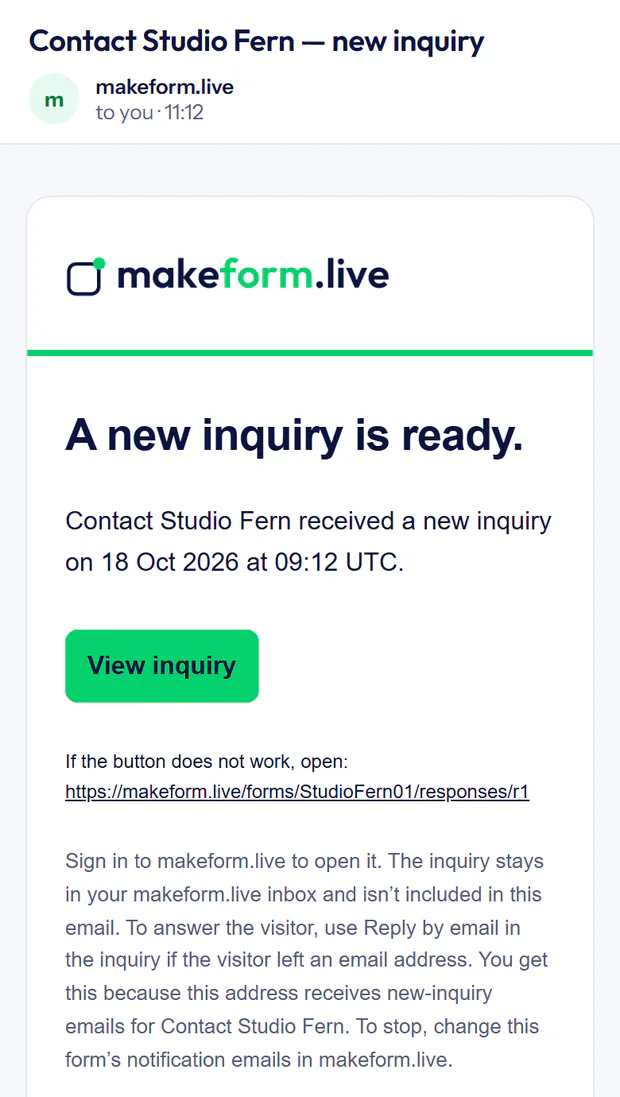
If a form is set to include inquiry details, its emails also show the visitor’s answers (not files) and come from a no-reply address. Anyone who can read the mailbox can read them, and deleting the inquiry doesn’t delete the email. To answer your visitor, open the inquiry and choose Reply by email.